Easy Way to Download Your Photos From Facebook
Facebook is a treasure trove of memories of you and your friends, so you may want to download Facebook photos and videos to your computer or phone.
We'll show you the official methods as well as third-party Facebook photo downloader apps, allowing you to download your photos, your friends' photos, and videos.
How to Download Facebook Photos
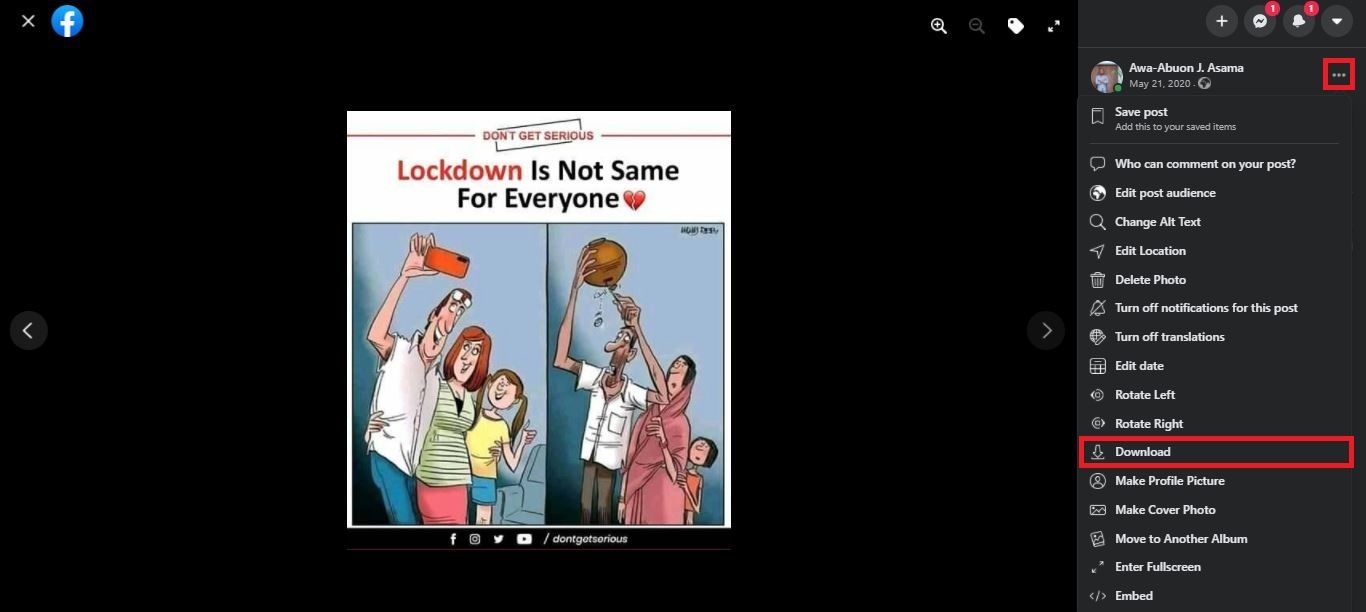
If you want to save a single photo on Facebook, don't bother with third-party apps or websites. Facebook itself offers an easy downloader tool.
- On desktop: Open the photo, click on Menu (the three-dot icon) > Download.
- On mobile: Open the photo in the Facebook app, tap Menu (the three-dot icon) > Save to Phone (Android) or Save Photo (iOS).
You can use this method to download Facebook photos. It's as simple as that.
However, to download your friends' Facebook photos, their Facebook photo privacy settings should allow for it.
How to Download Facebook Albums
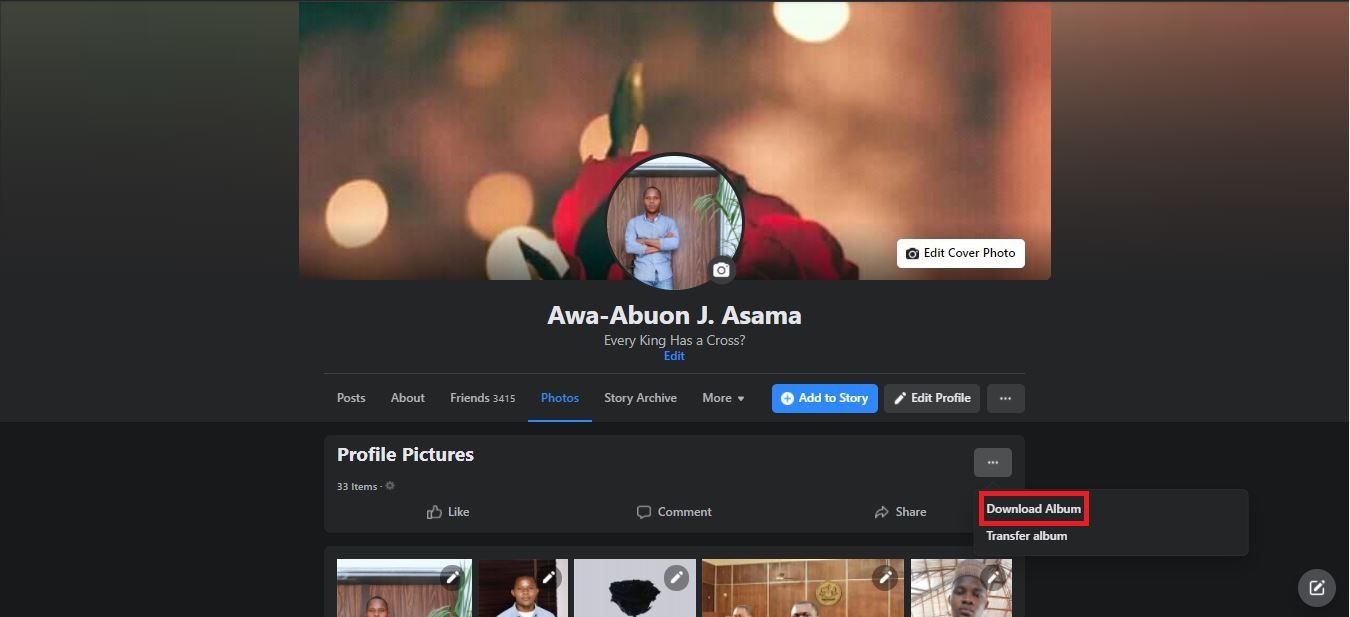
If you want to download a Facebook album from your own profile, Facebook has a simple method to do that. Again, you don't need any third-party downloader apps for this. However, you'll need to use Facebook on the web since the mobile apps don't let you download albums.
Follow these steps to download your Facebook album:
- Navigate to your profile by clicking your own name.
- Go to Photos > Albums.
- Open the album that you want to download.
- In the top-right corner, click the three-dot icon and select Download Album.
- Next, select Continue.
Facebook will get to work creating a zipped folder. Depending on the size of the album, this can take some time. Once it's done, you will get a notification telling you that the album is ready to download. Click the notification, enter your Facebook password and select Continue. Your album will immediately start downloading.
The downloaded album comes as a ZIP file. You'll need to extract it to access the pictures.
How to Download All of Your Facebook Photos
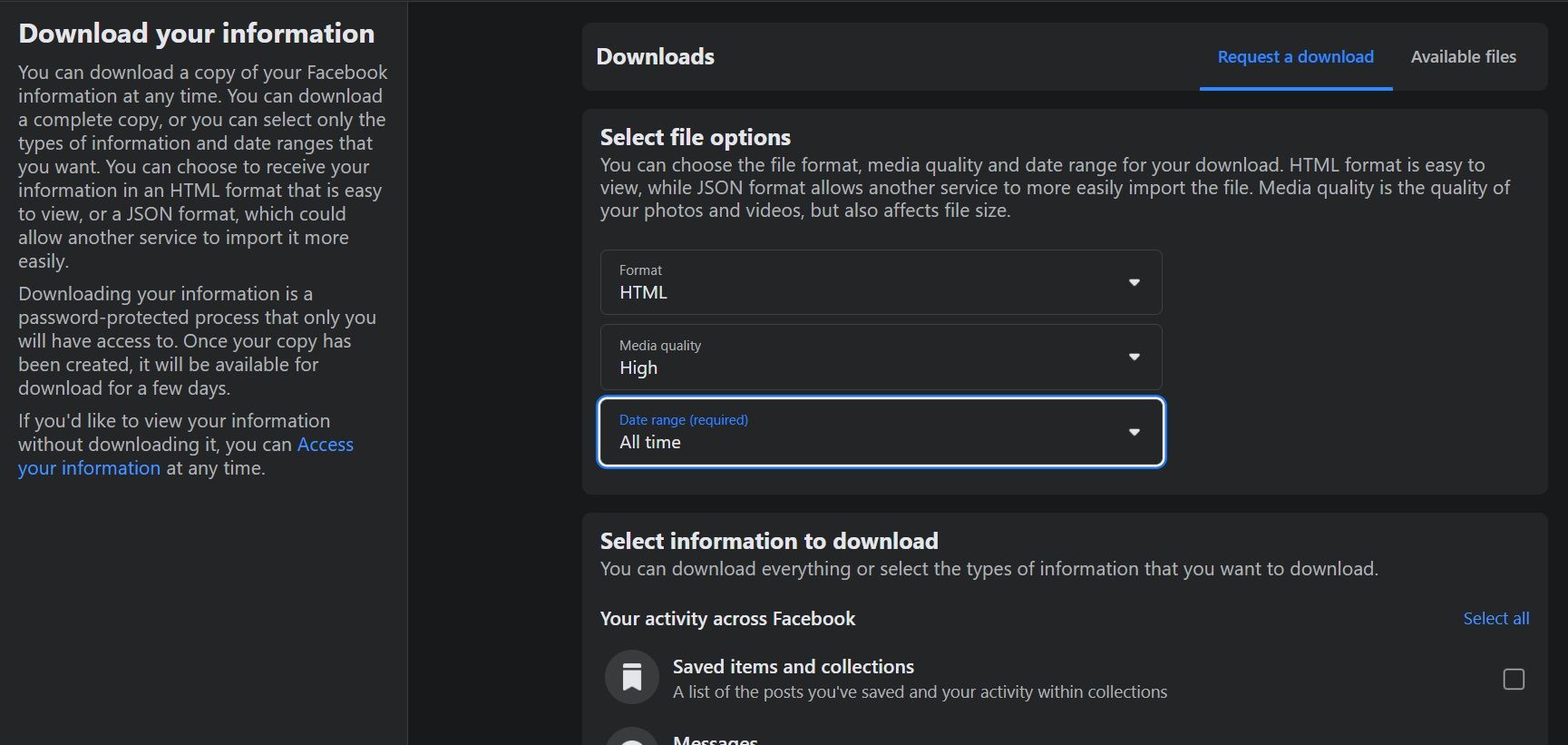
There is also a simple method to download all photos from Facebook that you have ever uploaded. You will even get them in the right sub-folders organized by album. But the names of the files can be a little strange.
Here's how to use the easy built-in Facebook photo downloader:
- Head to Facebook settings on your desktop browser or use the link Facebook.com/Settings.
- Click Your Facebook information in the sidebar.
- Select Download your information.
- Click Deselect all, then select only the Posts box.
- Choose the quality of the image files under Select file options. We recommend changing Medium to High if you want full-resolution copies. The setting you choose will determine the size of the file. If you have a lot of pictures, this will increase the file size and the time taken by Facebook to get it ready.
- Next, select the date range. Select All time to include all your photos.
- Scroll down and click Request a download.
Facebook will take some time to get the ZIP file ready, depending on how many photos and videos you have on Facebook. Once it's done, you will get a notification to download it from Available Files.
Download and unzip the file to see all of your posts and images, with albums as sub-folders.
The Best Facebook Photo Downloader App
The name is a mouthful, but VNHero Studio's Download Videos and Photos: Facebook and Instagram is one of the best Facebook picture downloader apps out there. It's free, it's super easy to use, and it works for videos too.
With this app, you can download your own Facebook photos and albums, and your friends' Facebook photo albums too. You can also search for users or Pages, and download photos and videos from there.
The app menu has quick links for Pages you have liked, saved videos and images, and bookmarks.
Tap Your Photos for your own pictures, From Friends to browse for someone in your friends' list, or Top Videos to browse recommended videos on Facebook Watch.
The search box at the top helps you find a user or a Page. Then browse to the album you want. Here, you can download all photos in the album or select a few to save. The method also works for videos.
Finally, you can also copy a link from a Facebook video or photo and download it directly inside the app. You can do this by simply tapping the link icon in the top left and pasting the link in the app. The only caveat is, the app is only available on Android.
Download: VNHero Studio's Download Videos and Photos: Facebook and Instagram for Android (Free, In-app purchases available)
How to Save Facebook Videos to Your Computer or Phone
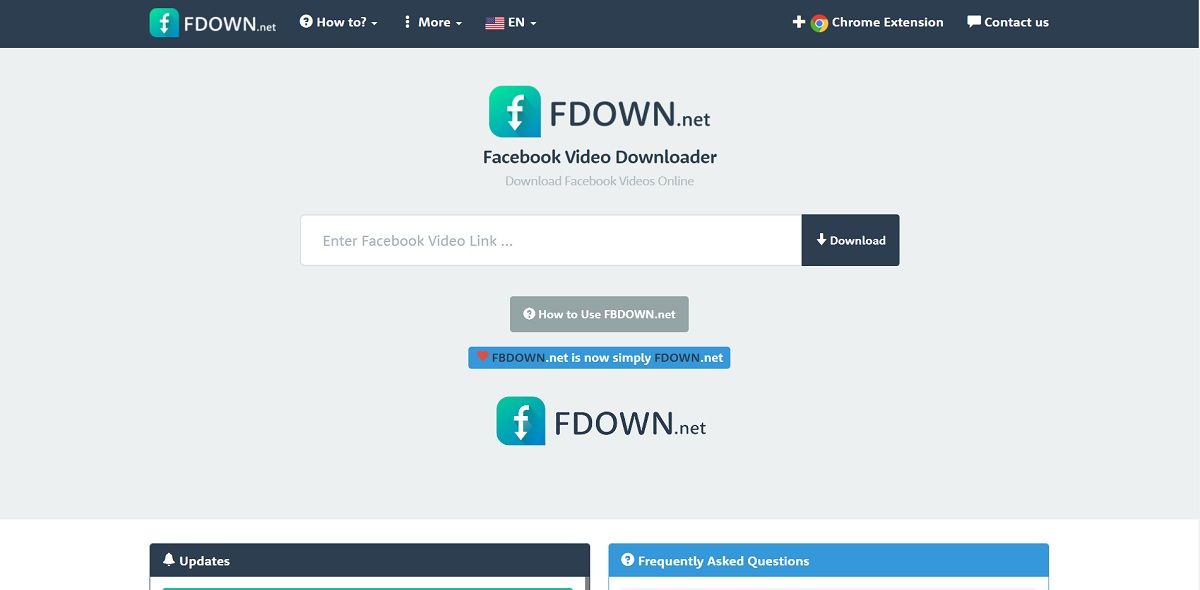
Pictures on Facebook have a simple Download button. But videos don't have any such easy way to download them. FDown.net is one of the easiest web apps you can use to save Facebook videos. It works on both desktop computers and smartphones.
Here's how to use it:
- Open the Facebook video and copy its link.
- Head to FDown and paste the link. Click or tap the Download button.
- Click Download Video in HD Quality or Normal Quality, and start downloading.
- In case the video plays in your window instead of downloading, go back to the previous page. Right-click on Download Video in HD Quality, choose Save link as... and download it to the folder of your choice.
It should work like a charm. The downloaded file will be in MP4 format, which should be fine for most people. The method works on mobile browsers as well.
However, iOS users will need to do it on Firefox as you can't use Safari or Chrome.
FDown also has a handy extension for Google Chrome on desktop dubbed Video Downloader Plus. When you are playing a Facebook video, click the extension icon to download it to your computer.
Visit: FDown.net
Download: Video Downloader Plus for Chrome (Free)
There are lots of other sites that work the same as FDown. Now that you can save Facebook videos, you might want to go back and search for old videos you liked. To help you do that, here's a guide on how to find videos on Facebook.
Apart from photos and videos, Facebook has a ton of other information about you. The company is also notorious for its data collection.
The above methods let you download photos and videos easily, but you might want to consider backing up your Facebook history and learning about other download and data management tools.
Source: https://www.makeuseof.com/tag/7-ways-to-download-facebook-photos-videos-that-actually-still-work-in-2016/
0 Response to "Easy Way to Download Your Photos From Facebook"
Publicar un comentario